ProjectTimer
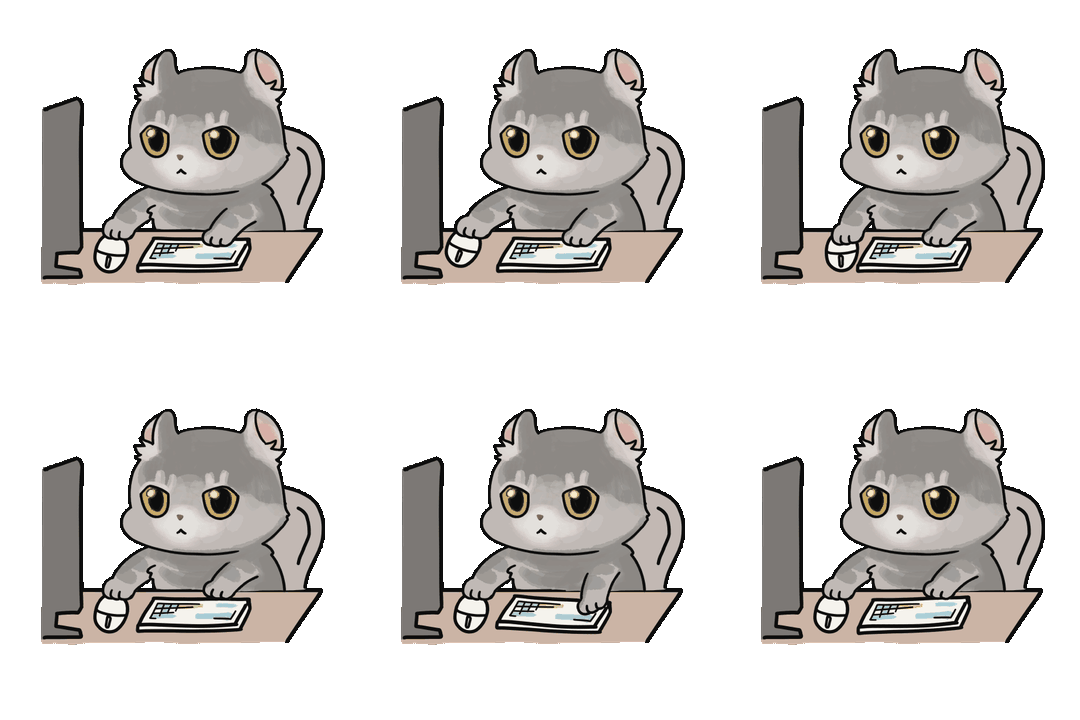
A desktop app that automatically records how long you work on each project. A character floating on your screen shows at a glance whether you're working, distracted, or taking a break.
Program : NewseobIllustrations : Moni




1Getting started
- Unzip to any folder you like. It's portable — no installer.
A folder such as D:\ or Documents is recommended over “Downloads”. - Double-click
ProjectTimer.exe. - Type a name in New project name in the start window and press Add.
- Pick the project in the list and press Start. The first time, the setup wizard asks for a timing mode and character; then the character status window appears and recording begins.
Use the tabs at the top of the start window to choose Local (on your own) or Online (with a work room or a buddy). For online, see G and H.
If a blue “Windows protected your PC” window appears the first time, click More info → Run anyway. It shows up because the program is made by an individual developer without a code signature.
2Three timing modes
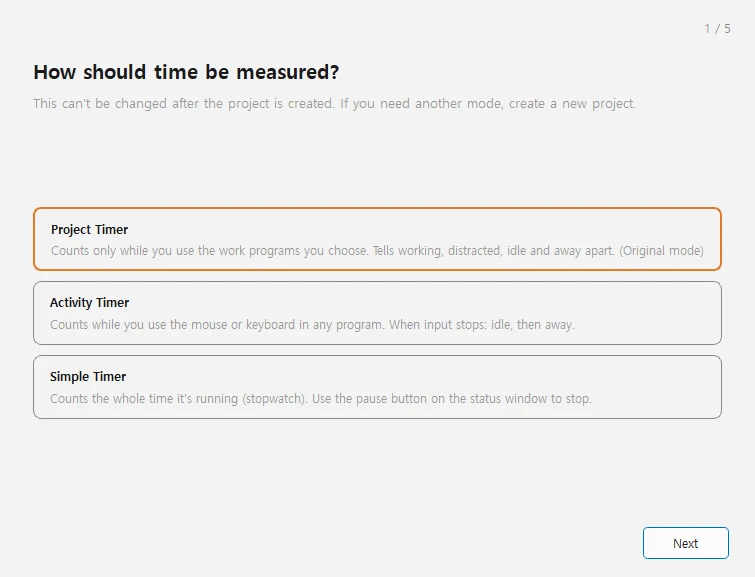
You choose one when you create a project.
Counts only while you use the work programs you choose (e.g. Photoshop, Blender). Tells working, distracted, idle and away apart. (The original mode)
Counts while you use the mouse or keyboard in any program. When input stops briefly the time pauses (Idle); after longer it switches to Away.
Counts the whole time it’s running (stopwatch). Press the pause button on the status window to stop.
- A project’s timing mode can’t be changed after it’s created (otherwise the total time would no longer add up). If you need a different mode, create a new project.
- Time while the computer is asleep or hibernating is never recorded, in any mode.
3Character statuses
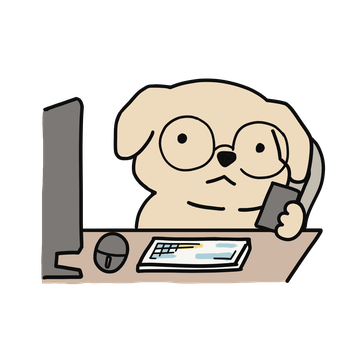
(Project Timer only)


Moving again returns to Working
The Simple Timer is always Working until you pause it. You can change when Idle and Away kick in under Settings.
4Startup · display language
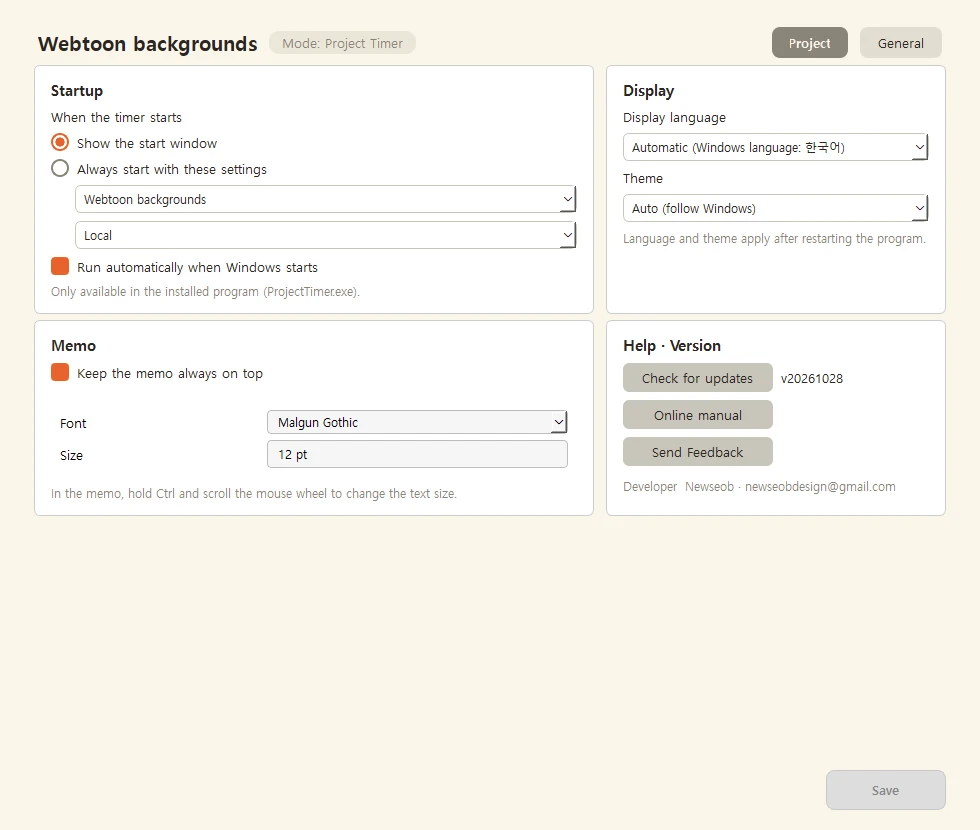
Right-click the status window → Settings → the General tab at the top right. These apply to all projects.
- When the timer starts — Show the start window / Always start with these settings (a project plus Local, Room or Buddy)
- Checking Always start with these settings at the bottom of the start window and pressing Start saves the same setting (you’ll be asked to confirm once).
- Run automatically when Windows starts — launches it when your PC starts (shows up as ‘ProjectTimer’ in Task Manager → Startup apps)
- To switch projects while it starts automatically: right-click the status window → Change Project
Display language · theme
In the Display box of the same tab, choose the Display language (Automatic / 한국어 / English / 日本語) and Theme (Automatic / Light / Dark). Automatic language follows Windows (English unless Windows is Korean or Japanese). Changes apply after you restart the program.
5Main features
| Statistics | Work time by day, month and program |
|---|---|
| Memo | A small note window that stays on screen |
| Online Work Room | Work together using just a nickname and a room code (experimental) |
| Buddy mode | Keep one friend on your screen and exchange notes (experimental) |
| Characters | 5 built-in (Mango, Milk, Hodoo, Mocha, Bori) + make your own |
Most features are in the menu you get by right-clicking the status window.
6Where are my records?
They’re created automatically next to ProjectTimer.exe.
data\ | Work time records and settings |
|---|---|
images\ | Character images |
Move the whole folder and your records and characters come with it. Don’t delete the data or images folders.
7Updates
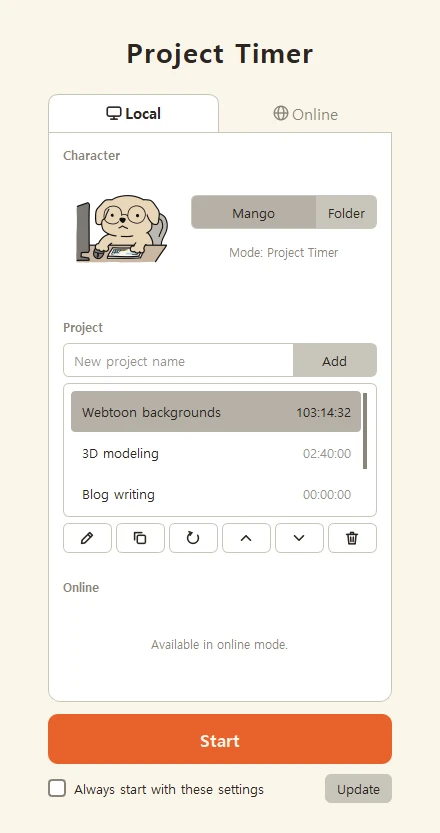
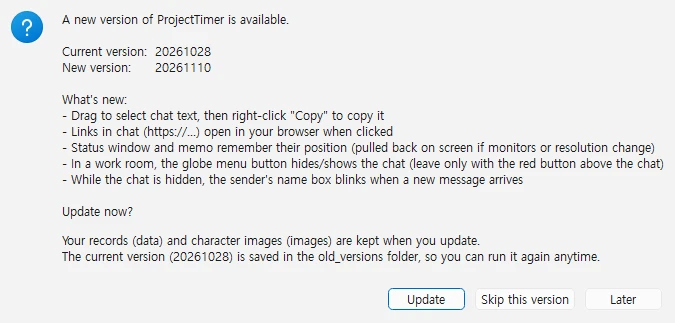
Automatic update (recommended)
When a new version is out, an Update button appears at the bottom right of the start window, and “Update available” also appears in the status window’s right-click menu. Press it to download and install. You can also check yourself in Settings → General → Check for updates. Your records (data) and characters (images) are kept, and the previous version is backed up in the old_versions\ folder.
If you downloaded a new zip yourself (moving your records)
- Close the program.
- Back up the whole old folder somewhere else.
- Copy the
datafolder from the old folder next toProjectTimer.exein the new folder.
In versions before 2025.10.02, data is inside_internal\data. - Run the new
ProjectTimer.exeand check your records.
8Troubleshooting
The update fails / _internal\updater.exe has disappeared
On some PCs, Windows Security (Defender) wrongly flags and removes the update tool (a false positive — reported to Microsoft). Your records are safe. Download the latest zip from the store page and move your records as in section 7.
It won’t start or closes right away
- Unzip it somewhere other than “Downloads” (e.g.
D:\ProjectTimer) and try again. - Check Task Manager for a ProjectTimer that’s already running.
Less time is recorded than expected
If you use Project Timer mode, check in Settings that your work programs are set correctly.
Still stuck?
Report bugs or suggest features via Send Feedback (or Settings → General → Send Feedback). Leave your email and we’ll reply.
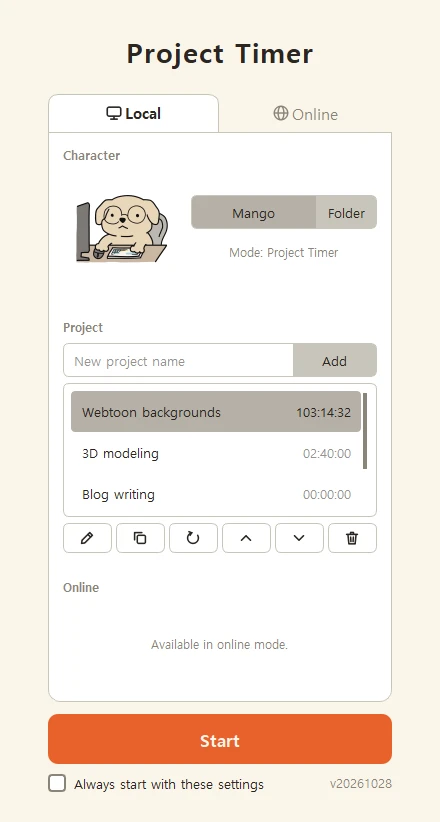
AStart window
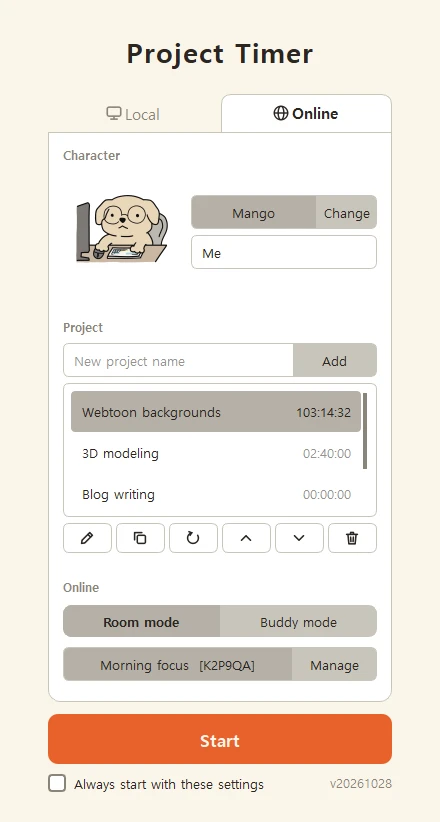
Tabs
| Local | Record on your own. The selected project’s timing mode is shown next to the character, and you can change the character (preset or folder) right here. |
|---|---|
| Online | Set your character and nickname, then choose Room mode / Buddy mode in the “Online” box below. |
Project list (total time on the right)
| Add | Create a new project (the setup wizard opens when you first start it) |
|---|---|
| Pencil | Rename (its records follow) |
| Two squares | Copy — settings only; -1, -2 is added to the name (time starts at 0) |
| Circular arrow | Reset time — set that project’s total time to 0 |
| ∧ / ∨ | Change the order |
| Trash can | Delete the project |
Online box
| Room mode | Pick a room you joined before and press Start to go straight in. Use “Manage” to find other rooms or create one. |
|---|---|
| Buddy mode | Your buddy’s window opens when you start. Use “Manage” to choose your buddy. |
| Character / Change | The character others see online (including your own). Register your own with “Change”. |
Double-click a project to start it right away. For “Always start with these settings” see section 4.
BCreating a project (setup wizard)
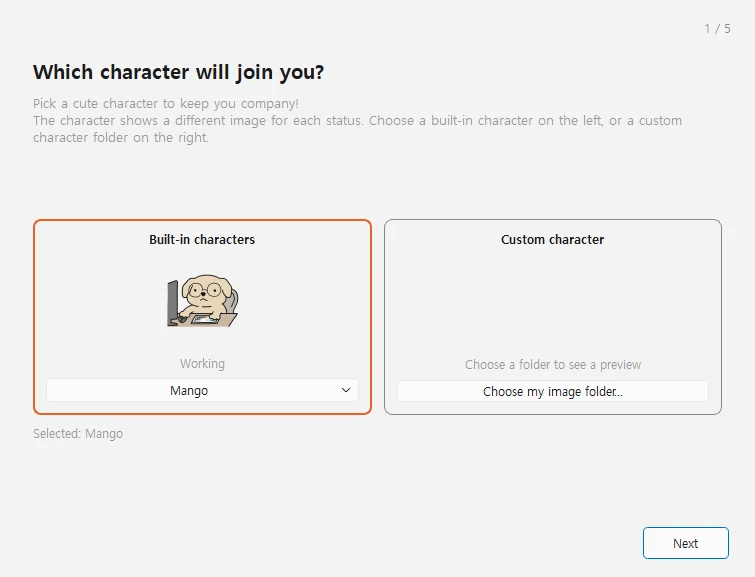
- Start fresh / Load from an existing project
- Choose a timing mode (Project / Activity / Simple Timer)
- Choose a character (image folder) — it applies to all projects
- Choose working and distracted programs (Project Timer only) — you can add the program shown as “Active window” with a button
- Set the Idle and Away times (skipped for the Simple Timer)
- Check the summary and finish
Steps that don’t apply to the chosen mode are skipped. You can only load settings from a project with the same mode.
CSettings (right-click the status window → Settings)
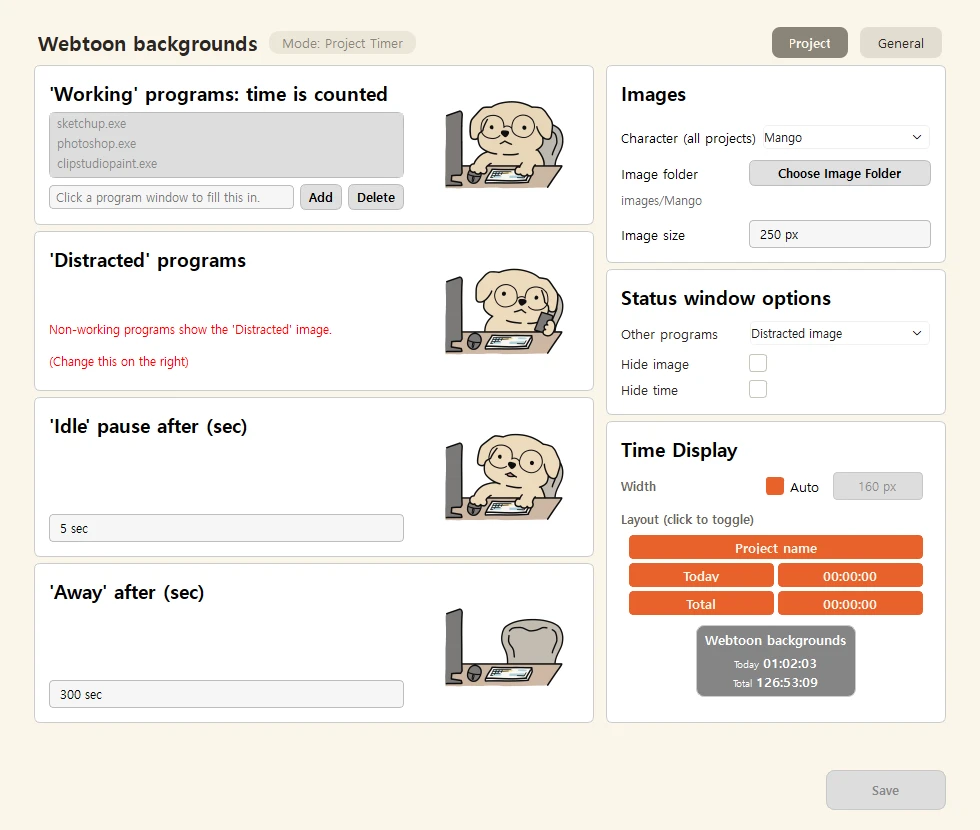
The project name and timing mode are shown at the top; switch between Project and General (section 4) with the tabs at the top right. Project settings are saved per project, but the local character is shared by all projects (separate from your online character). The Save button turns on only when something has changed.
| ‘Working’ programs Project Timer only | Time is counted only while you use these programs. Click the input box, then click the program window you want — its name is filled in automatically → Add. Select one in the list and press Delete to remove it. |
|---|---|
| ‘Distracted’ programs Project Timer only | Using these programs switches the character to Distracted (no time is counted). |
| ‘Idle’ pause after default 5 s · 1–3600 s | If there’s no input for this long, time pauses and the status becomes Idle. If you often read references without touching the mouse, make this longer. |
| ‘Away’ after default 300 s · 10–3600 s | If there’s no input for this long, the status becomes Away. (Idle and Away are hidden for the Simple Timer) |
| Choose Image Folder | Pick the character folder to use (shared by all projects) |
| Time Display Project settings | Info box width (Auto or 120–400), which lines to show (project name, Today, Total), and numbers only. Check the result in the preview. |
| Image size 100–2000 px | Character size |
| Other programs Project Timer only | Image shown for programs not in any list (Working / Distracted). Only the image changes; time is counted only in your ‘Working’ programs. |
| Hide image | Hide the character and show only the time |
| Hide time | Hide the time and show only the character |
| Memo on top · font / size General tab · 8–48, default 12 | Keep the memo on top, its font and text size |
DUsing the status window
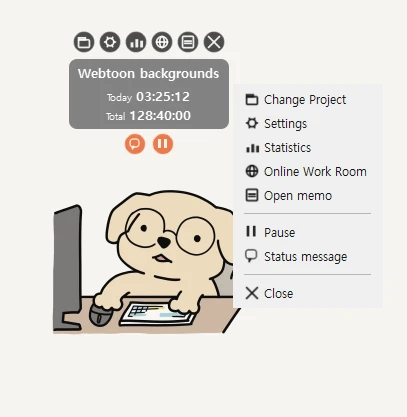
Drag it anywhere you like. It always stays on top of other windows. Its position is remembered, and is pulled back on screen if your monitors or resolution change.
Top menu (appears on mouse-over)
| Folder | Change Project |
|---|---|
| Gear | Settings |
| Bars | Statistics |
| Globe | Online Work Room |
| Memo | Open/close the memo |
| X | Close (saves and quits) |
Round buttons below the time (appear on mouse-over)
| Speech bubble | Write a status message (others can see it in the Online Work Room) |
|---|---|
| ⏸ / ▶ | Pause / resume (only stops counting time) |
Right-click menu
Change Project · Settings · Statistics · Online Work Room · Memo · Pause · Status message · Update available (only when there is one) · Close
While you’re in a work room, the globe button hides or shows the chat. To leave the room, press the red button above the chat.
EStatistics
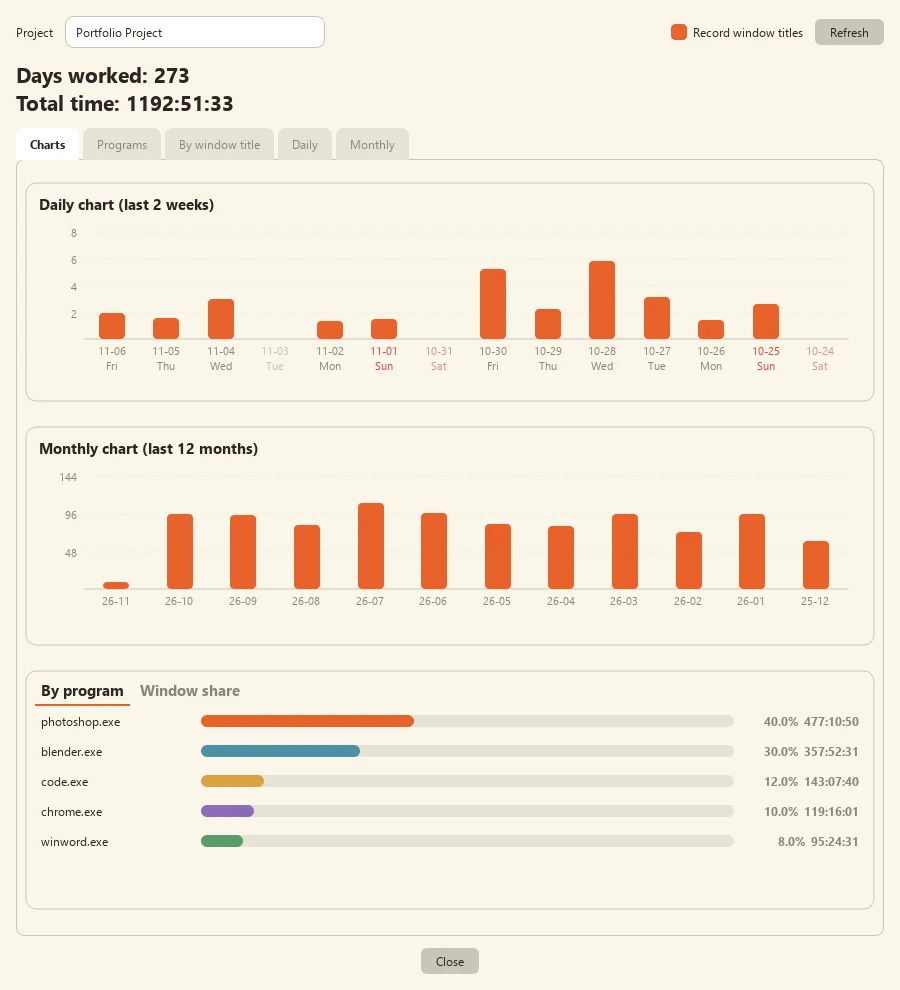
- Choose a project to see daily and monthly work time in tables and bar charts
- See how your time splits across programs
- In Activity and Simple Timer modes, time where the program is unknown is shown as “Other”
Records by window title
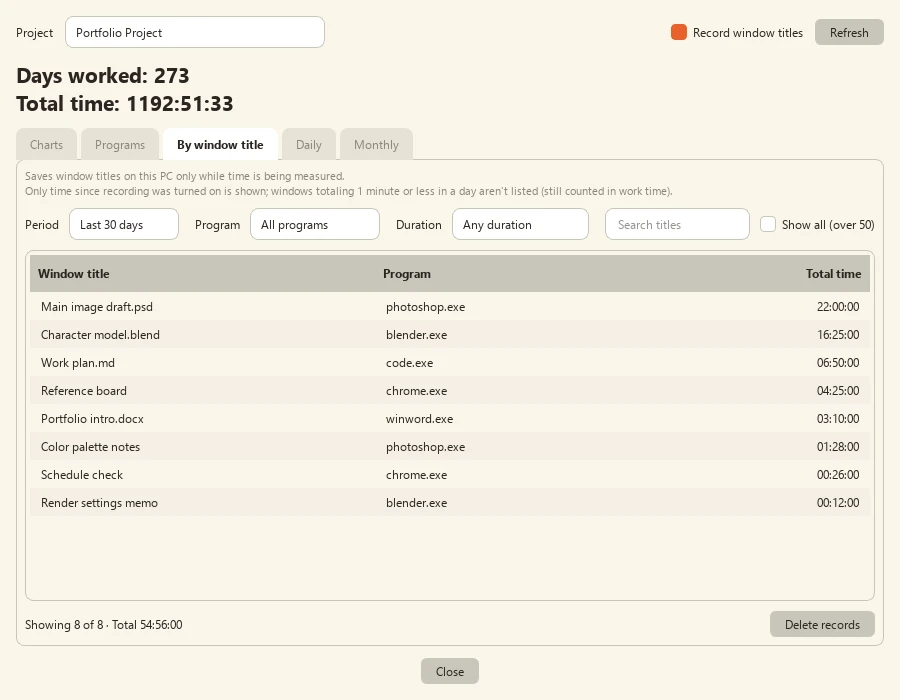
See how much time you spent in each window, by title. For example, windows of the same browser can be told apart when their titles differ. It is off by default; check Record window titles at the top of the Statistics window to start.
Caution: window titles may contain sensitive information such as bank, email or document names, and are saved as-is on this PC. Turn this on only when needed, and delete records you don't want to keep.
- Only windows active while time is being measured are recorded. Project Timer records designated programs only; Activity and Simple Timers record any program in front.
- Records are saved in
data\window_titles\and are never sent to online rooms or servers. - By window title tab: find records by period, program, duration or title search. Windows totaling 1 minute or less in a day aren't listed (still counted in work time).
- Charts tab: switch the By program panel to Window share.
- Delete records: choose selected titles, briefly used windows, or all window records. By default only window records are removed; check Also subtract this time from work time to reduce your total too (backed up automatically first). It covers all time, regardless of the period filter.
- Turning recording off does not delete saved records; they are only hidden. To delete them, turn recording on first.
FMemo
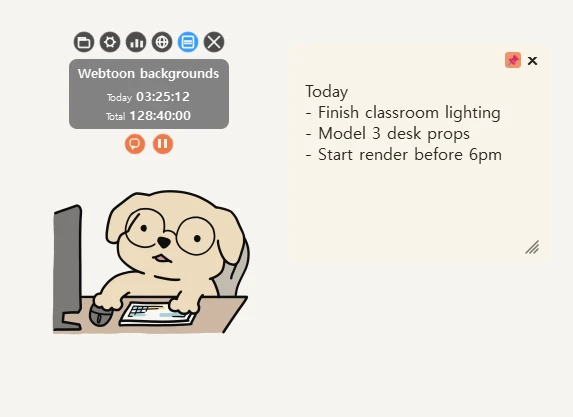
- A small note window on your screen. It saves automatically.
- Use the pin button to turn “Always on top” on or off.
- Drag any edge to resize; the size and position are remembered for next time.
- Ctrl + mouse wheel changes the text size right away.
GOnline Work Room (experimental)
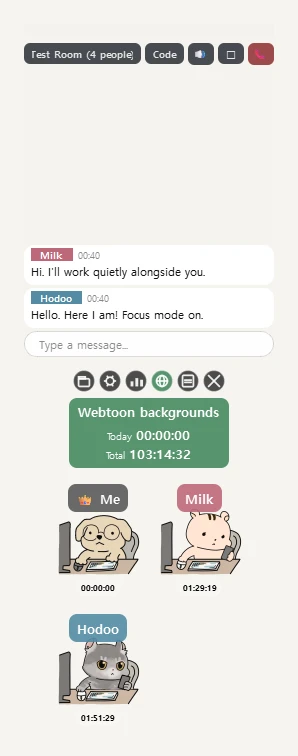
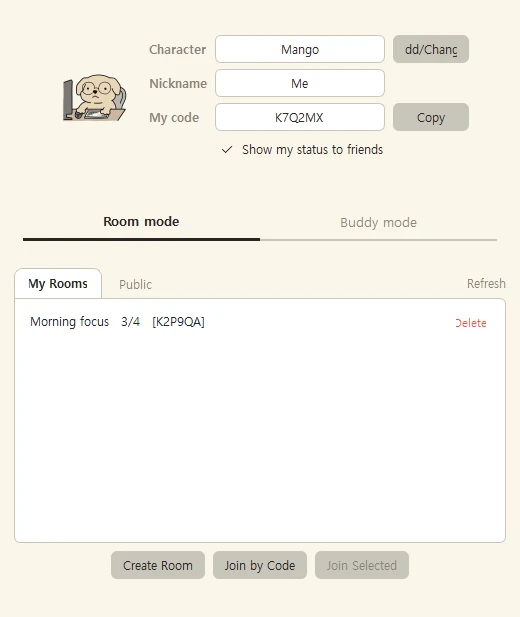
Work room window
- Open it with the globe button on the status window (or “Manage” on the start window’s Online tab).
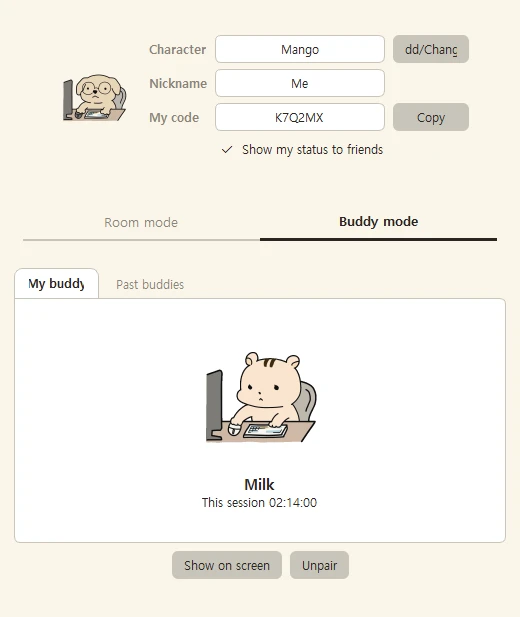
- Top: character / nickname / My code (for connecting a buddy). Add/Change to make your own character (4 status images)
- Room mode tab: My Rooms / Public lists, Create Room (leave the password empty for a public room), Join by Code / Join Selected
- Room mode and Buddy mode can’t be used together. Close the buddy window first if it’s open.
Inside a room (buttons above the chat)
| Room name | Only the host can rename |
|---|---|
| Code | Click to copy the room code (share with friends) |
| 🔊 / 🔇 | Sounds on/off |
| □ / ■ | Background behind the chat and characters on/off |
| 📞 | Leave the room |
- Drag the top edge of the chat to resize it; drag the chat background to move it
- Chats fade after 1 minute and disappear after 1 hour.
- The host can right-click a chat → Delete Chat (for everyone), or right-click a participant → Kick
- Drag to select chat text and right-click “Copy” to copy it. Links (https://…) open in your browser when clicked.
- While the chat is hidden with the globe button, the sender’s name box blinks when a new message arrives.
- Mini mode — show everyone small, grouped together
- An experimental feature that works without an account; it may change or be removed.
HBuddy mode · notes (experimental)
Choosing a buddy
- In the work room window → Buddy mode tab, enter your friend’s 6-character “My code” and press Connect.
- When your friend enters your code too (or accepts your request), you become buddies. You can have one buddy.
- Press Show on screen, or start in Buddy mode from the start window’s Online tab, to open the buddy window.
Buddy window
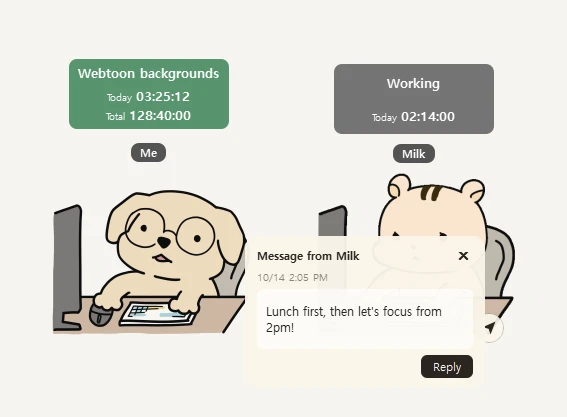
- Right next to your status window you see your friend’s character, nickname, current status and today’s work time. Your own info box turns green.
- Right-click the buddy window → Close to go back to normal mode. It also closes with your status window.
- Turn off “Show my status to friends” to hide your status from your friend.
Notes
| Paper plane | Bottom right of your buddy’s character — write a note (text only, up to 500 characters, one per minute) |
|---|---|
| Envelope | Bottom right of your character — shown only when you have notes; the orange number is how many are unread |
| Reply | In a received note, send a note straight back |
A sound plays when a note arrives. Received notes open one at a time, oldest first, with the time they arrived.
IMaking your own character (folder method)
Create a new folder inside the images folder and put these 4 files in it. Then pick it in Settings → Choose Image Folder. Each file can be either GIF (animated) or PNG.
working.gif / .png | Working |
|---|---|
distraction.gif / .png | Distracted |
idle.gif / .png | Idle |
away.gif / .png | Away |
Image guidelines
| Size | 560px or less on the long side recommended (same as the built-in characters) |
|---|---|
| Background | Transparent recommended. GIF cannot show semi-transparency, so edges become fully transparent or opaque. |
| Animation | Fewer frames are lighter. Built-in characters use 7–10 frames at about 0.2 seconds each. |
Automatic optimization of large GIFs
- The first time a GIF over 560px on the long side plays, the original is shown.
- Meanwhile a 560px copy is created in the background and saved to
data\image_cache\. - When the copy is ready, playback switches to it automatically and it is used from then on.
- Your original file is not changed. If you edit the original, a new copy is created.
- If the image size setting is over 560px, the original plays so it stays sharp. A large GIF may slow the program in this case.
Windows 10 / 11 only (no Mac or mobile) · Based on version 20261106-2